Version v0.14 of Metabase is no longer supported. Check out the docs for the current stable version, Metabase v0.63.
Whenever you’ve arrived at an answer that you want to save for later, click the SAVE button in the top right of the screen. This will also save the visualization option you’ve chosen for your answer.

A pop-up box will appear, you to give your question a name and a description. We suggest phrasing the names for your questions in the form of a question, such as, “How many customers did we have last month?”
After saving your question, you’ll have a few options, one of which is adding your saved question to a dashboard.
A dashboard is a collection of saved questions that you want to refer back to and view regularly. It displays groups of questions and their corresponding answers.
Questions on a dashboard are meant to be viewed together, so they’re usually grouped by some kind of theme or topic, like Users, Inventory, or Reservations. A reservations dashboard could show the number of reservations by day of week, time of day, geographical region, and more.
Have a few key performance indicators that you want to be able to easily check? Make a dashboard featuring questions that show your key metrics and share it with your team.
You can make as many dashboards as you want. Go nuts.
Once you have a question saved, you can create a dashboard. Click the Dashboards dropdown at the top of the screen, then Create a new dashboard. Give your new dashboard a name and a description, then click Create, and you’ll be taken to your shiny new dashboard. You can always get to your dashboards from the dropdown at the very top of the screen.
You can add a newly saved question to a dashboard directly from the window that pops up after you save the question, or you can go to one of your dashboards and click the plus icon in the top right to add any of your saved questions to the dashboard.
Once you add a question to your dashboard, it’ll look something like this:
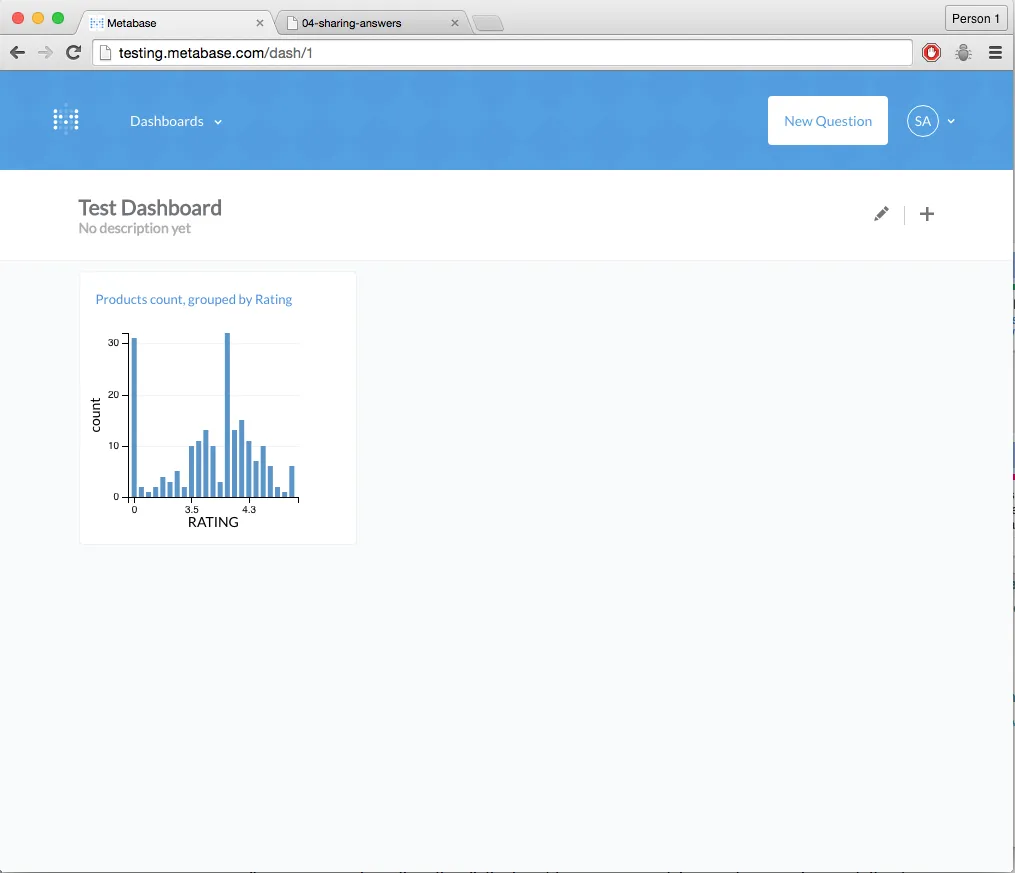
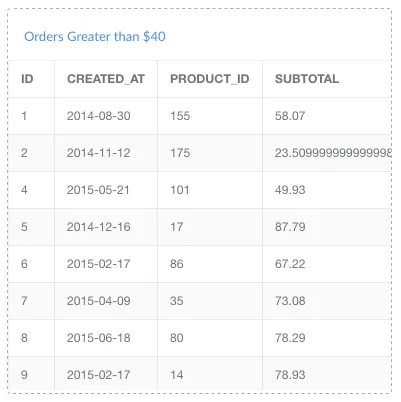
Each question on a dashboard is in its own card that you can move around or resize as you see fit; just click the edit icon that looks like a pencil in the top-right of the dashboard screen.
The lines around the card will change from solid to dotted, showing you that you’re in edit mode.
Deleting a dashboard does not delete the individual saved questions on it — it just deletes the dashboard. Remember — dashboards are shared by everyone on your team, so think twice before you delete something that someone else might be using!
To delete a dashboard, click the pencil-looking Edit icon in the top right of the dashboard, then click Delete.
Next, we’ll offer up some suggestions on how to create useful dashboards, in our Tips on Dashboards.


