Version v0.17 of Metabase is no longer supported. Check out the docs for the current stable version, Metabase v0.63.
The Mac Application is the easiest way to setup Metabase locally on Mac OS X for personal use. Note that currently the Mac Application is not setup for shared use, so some Metabase features which involve the rest of your team won’t be possible.
Start off by downloading the Metabase Mac Application if you haven’t done so already. Once the download is complete go ahead and double click the file to open the installer. You should see something like this:
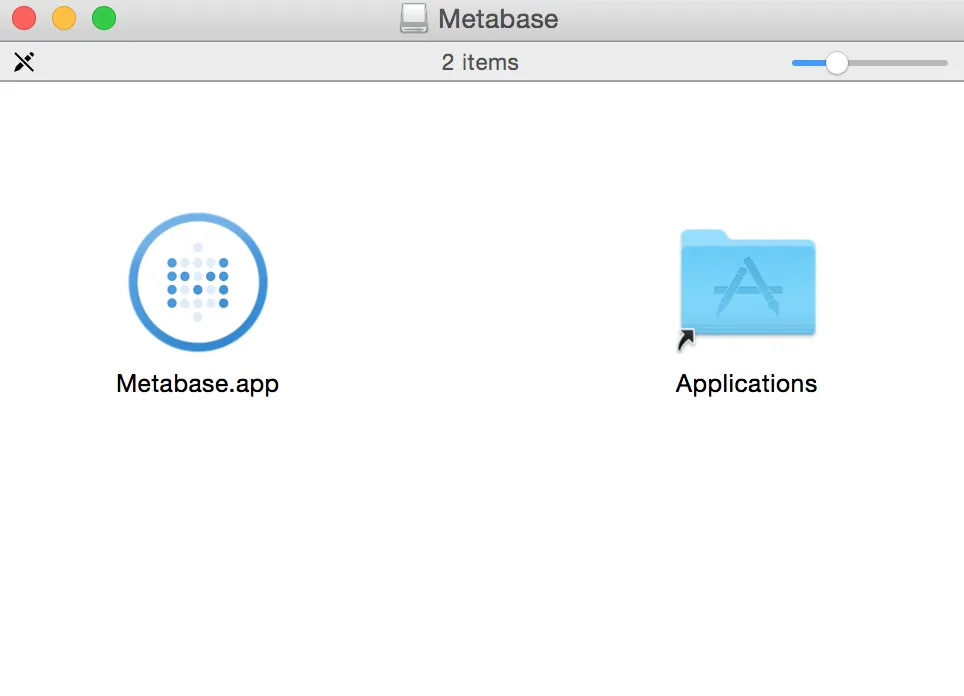
Next simply click and drag the Metabase.app icon over to the Applications folder icon on the left. That will install Metabase into your main Applications folder.
To launch Metabase open the Mac Finder application and click on Applications on the left. Then scroll down your applications list until you see Metabase.app and double click it.
The Metabase application should now have opened and you should see the loading screen in the application window with a spinner going.
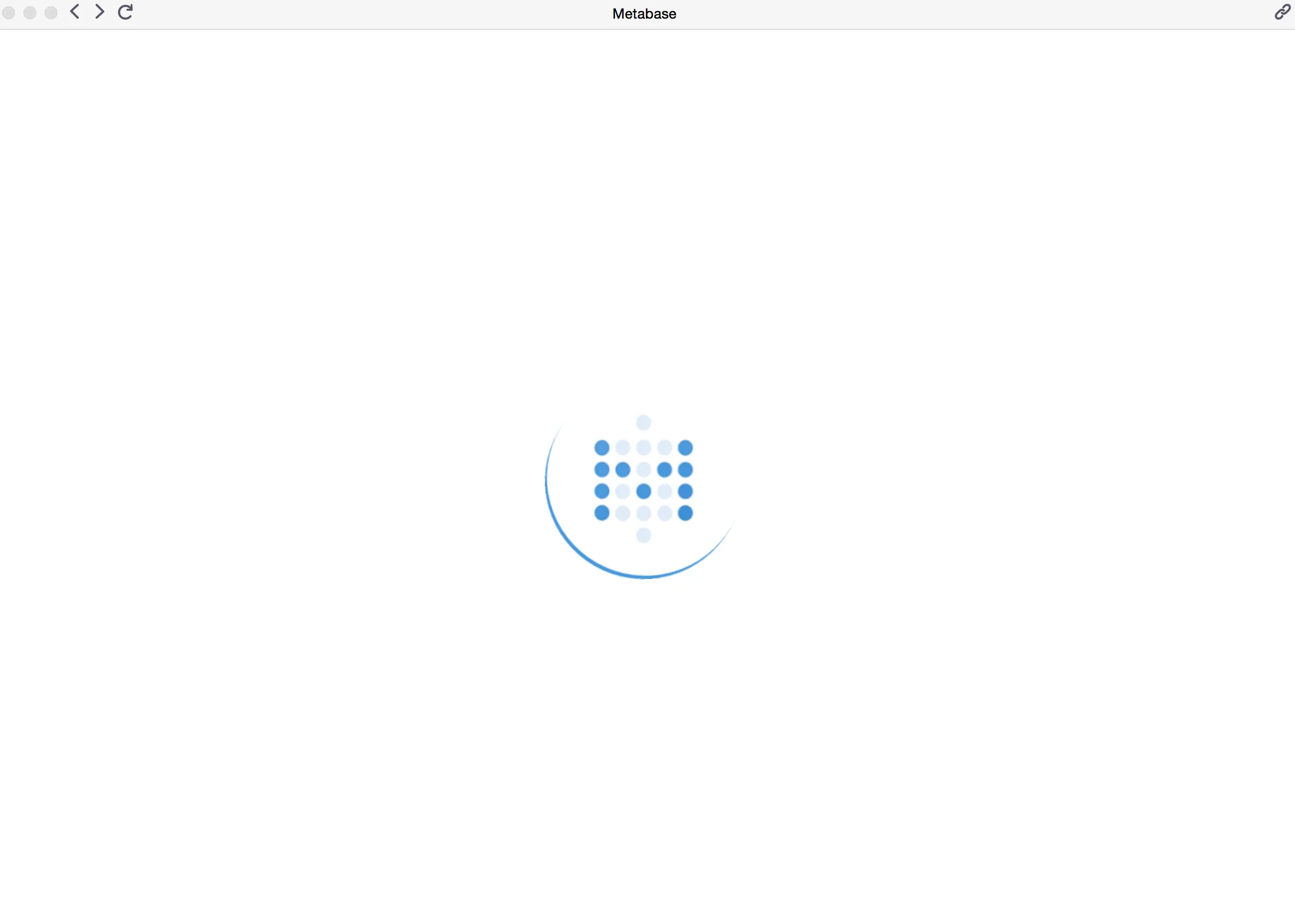
Give the application a moment to finish initializing and then you should see the screen change to the Metabase Welcome page. That’s it! Installation Complete.
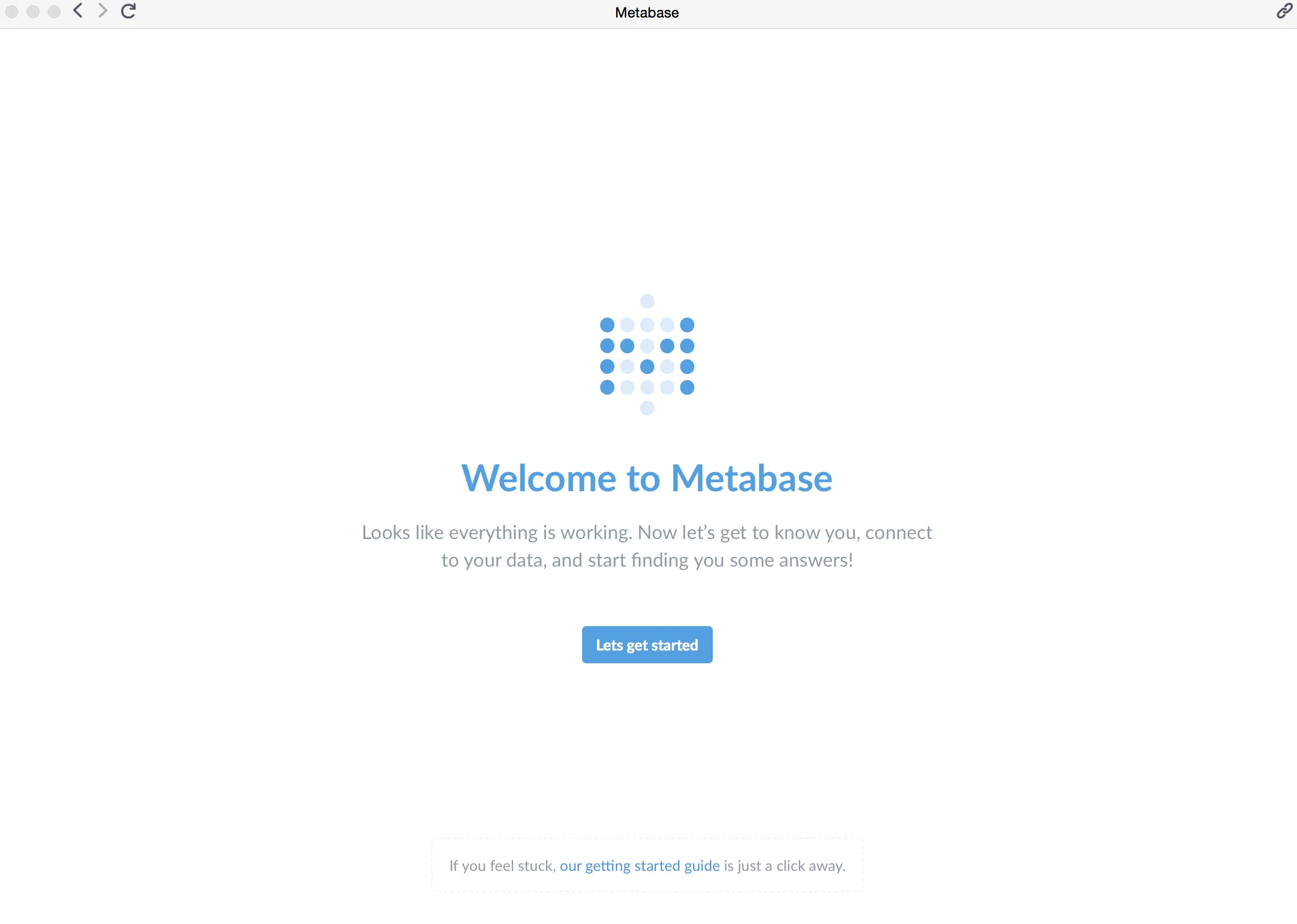
Now that you’ve installed Metabase, it’s time to set it up and connect it to your database.


