Version v0.25 of Metabase is no longer supported. Check out the docs for the current stable version, Metabase v0.63.
If you already connected your database during the installation, you’ve probably a covered a lot of this info. But if you need to add another database or manage the settings of the one you already have connected, just click the circle with your initials in the top right of Metabase and select the Admin Panel.
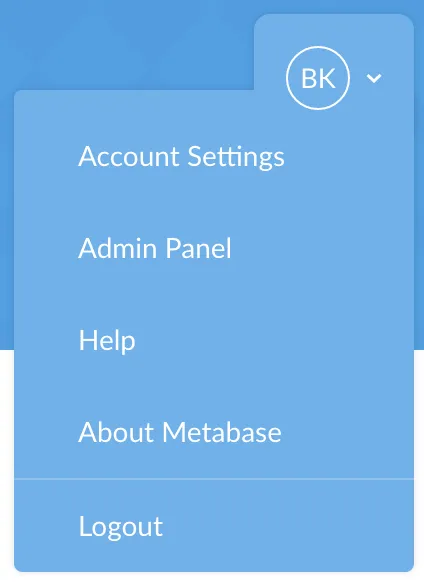
Cool, now you’re in the admin panel. Next, select Databases from the menu bar at the top of the screen to see your databases.
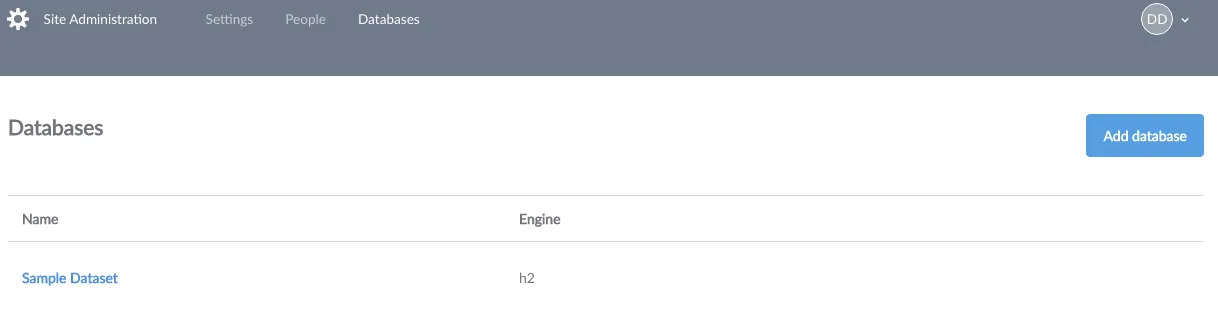
Now you’ll see a list of your databases. To connect another database to Metabase, click Add database. Metabase currently supports the following types of databases:
To add a database, you’ll need its connection information.
Metabase automatically tries to connect to databases with and without SSL. If it is possible to connect to your database with a SSL connection, Metabase will make that the default setting for your database. You can always change this setting later if you prefer to connect without this layer of security, but we highly recommend keeping SSL turned on to keep your data secure.
When Metabase connects to your database, it tries to decipher the field types in your tables based on each field’s name. Metabase also takes a sample of each table to look for URL’s, json, encoded strings, etc. If a field is classified wrong, you can always manually edit it from the Metadata tab in the Admin Panel.
Metabase maintains it’s own information about the various tables and fields in each Database that is added to aid in querying. This information is generally updated once each night to look for changes to the database such as new tables, but if you’d like to sync your database manually at any time:
NOTE: Metabase does NOT copy any data from your database, it only maintains lists of the tables and columns.
Go to the Admin Panel.
Select Databases from the navigation menu.

Click on the database you would like to sync.
Click on the Sync button on the right of the screen.
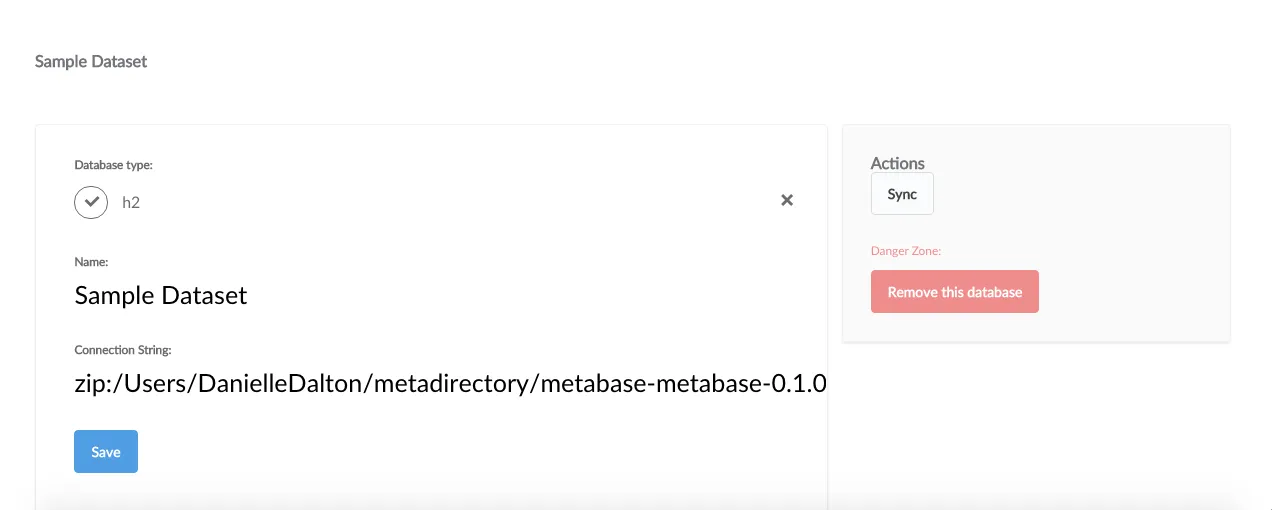
To delete a database from Metabase, click on Remove this database from the database detail screen.
You can also delete a database from the database list: hover over the row with the database you want to remove and click the Delete button that appears.

Caution: Deleting a database is irreversible! All saved questions and dashboard cards based on the database will be deleted as well!
Metabase has the ability to connect to some databases by first establishing a connection to a server in between Metabase and a data warehouse, then connect to the data warehouse using that connection as a bridge. This makes connecting to some data warehouses possible in situations that would otherwise prevent the use of Metabase.
There are two basic cases for using an SSH tunnel rather than connecting directly:
Sometimes when a data warehouse is inside an enterprise environment, direct connections are blocked by security devices such as firewalls and intrusion prevention systems. To work around this many enterprises offer a VPN, a bastion host, or both. VPNs are the more convenient and reliable option though bastion hosts are used frequently, especially with cloud providers such as Amazon Web Services where VPC (Virtual Private Clouds) don’t allow direct connections. Bastion hosts offer the option to first connect to a computer on the edge of the protected network, then from that computer establish a second connection to the data warehouse on the internal network and essentially patch these two connestions together. Using the SSH tunneling feature, Metabase is able to automate this process in many cases. If a VPN is available that should be used in preference to SSH tunneling.
When connecting though a bastion host:
Host parameter.Port parameter.SSH tunnel host parameter.SSH tunnel port parameter. This is usually 22, regardless of which data warehouse you are connecting to.SSH tunnel username and SSH tunnel password parameters.If you are unable to connect test your ssh credentials by connecting to the SSH server/Bastion Host using ssh directly:
ssh <SSH tunnel username>@<SSH tunnel host> -p <SSH tunnel port>
Another common case where direct connections are not possible is when connecting to a data warehouse that is only accessible locally and does not allow remote connections. In this case you will be opening an SSH connection to the data warehouse, then from there connecting back to the same computer.
localhost in the Host parameter. This is the name the serverPort parameter that you would use if you where sitting directly at the data warehouse host system.SSH tunnel host parameter.SSH tunnel port parameter. This is usually 22, regardless of which data warehouse you are connecting to.SSH tunnel username and SSH tunnel password parameters.If you have problems connecting verify the ssh host port and password by connecing manually using ssh or PuTTY on older windows systems.
While using an ssh tunnel makes it possible to use a data warehouse that is otherwise not accessible it is almost always preferable to use a direct connection when possible:
There are several inherent limitations to connecting through a tunnel:
This feature exists as a convenient wrapper around SSH and automates the common cases of connecting through a tunnel. It also makes connecting possible from systems that don’t have or allow shell access. Metabase uses a built in SSH client that does not depend on the installed system’s ssh client. This allows connecting from systems where it’s not possible to run SSH manually, it also means that Metabase cannot take advantage of authentication services provided by the system such as Windows Domain Authentication or Kerberos Authentication.
If you need to connect using a method not enabled by Metabase, you can often accomplish this by running ssh directly:
ssh -Nf -L input-port:internal-server-name:port-on-server username@bastion-host.domain.com
This allows you to use the full array of features included in ssh. If you find yourself doing this often, please let us know so we can see about making your process more convenient through Metabase.
Metabase can send emails for certain features, like email invites, but first you need to set up an email account.


