Version v0.36 of Metabase is no longer supported. Check out the docs for the current stable version, Metabase v0.63.
This article covers SQL snippet folders, which are an Enterprise feature for organizing and permissioning snippets. You can learn more about how SQL snippets work in our User Guide.
Folder permissions should not be considered a security feature, but instead a feature that helps organize and standardize snippets. Although folders are distinct and separate from Collections, they both serve an organizational function: Collections gather and permission dashboards and questions; folders gather and permission snippets. For more info, see the discussion on permissions below.
Folders work similarly to a file system. You can add snippets to folders, and put folders inside of other folders. You can nest as many folders as your Metabase instance can handle or the laws of physics allow (whichever yields first).
The Top folder is the snippet sidebar’s default folder. It is the root folder that contains all folders and snippets.
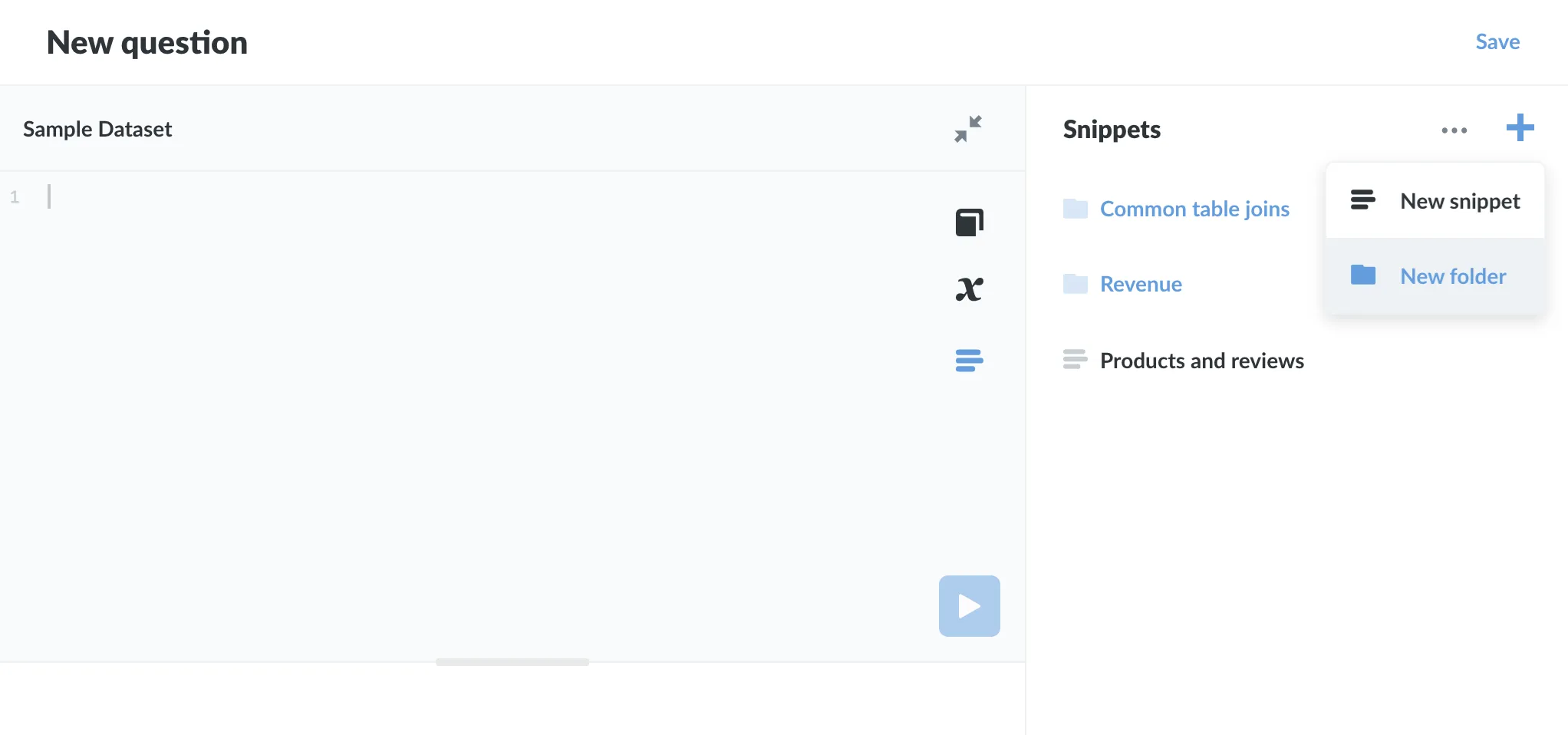
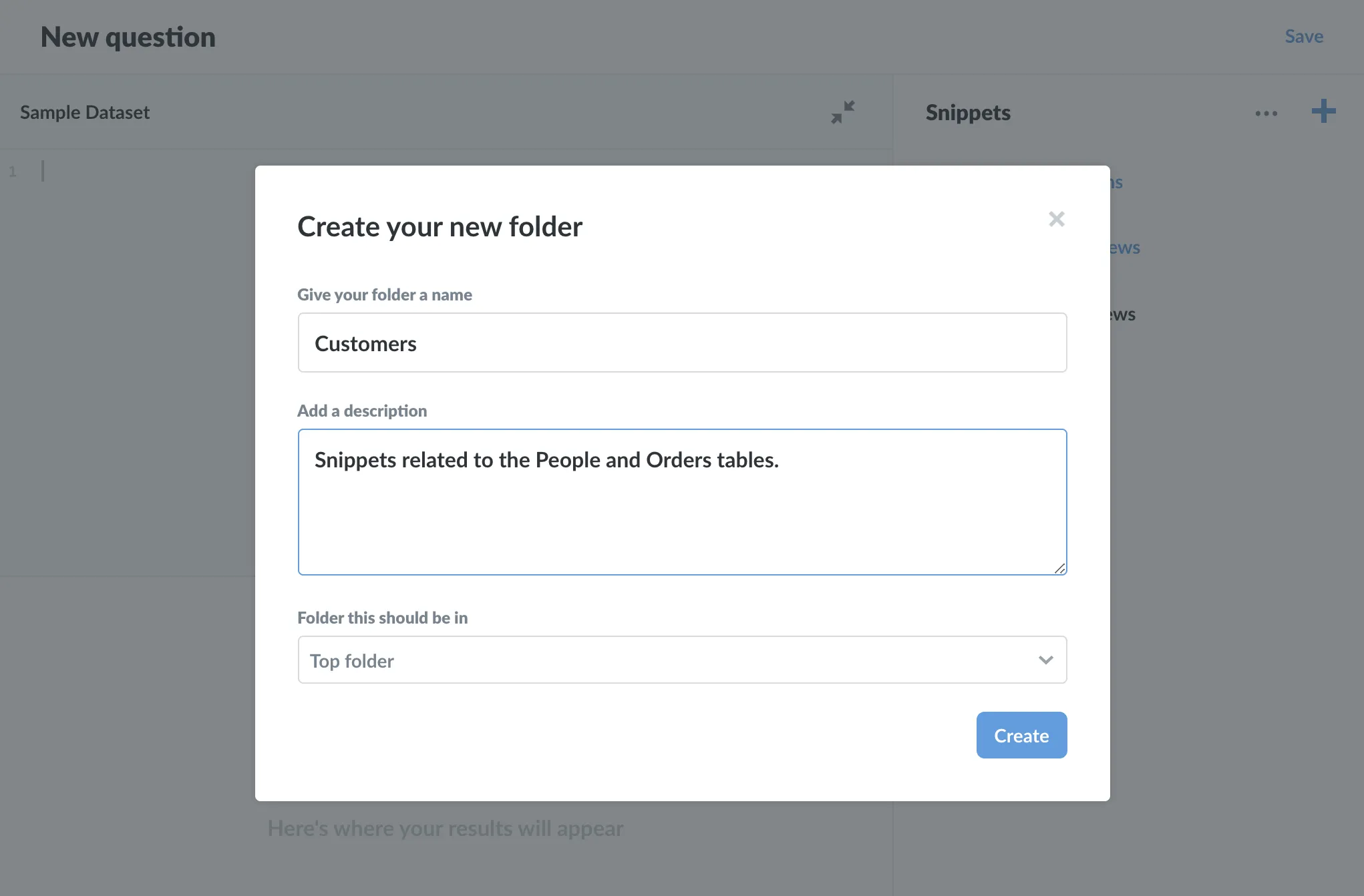
You can create a SQL snippet folder from the Snippets menu in the SQL editor.
When creating a SQL snippet in the Enterprise Edition, you’ll also see an additional option to add that snippet to an existing folder (the Folder this should be in option).
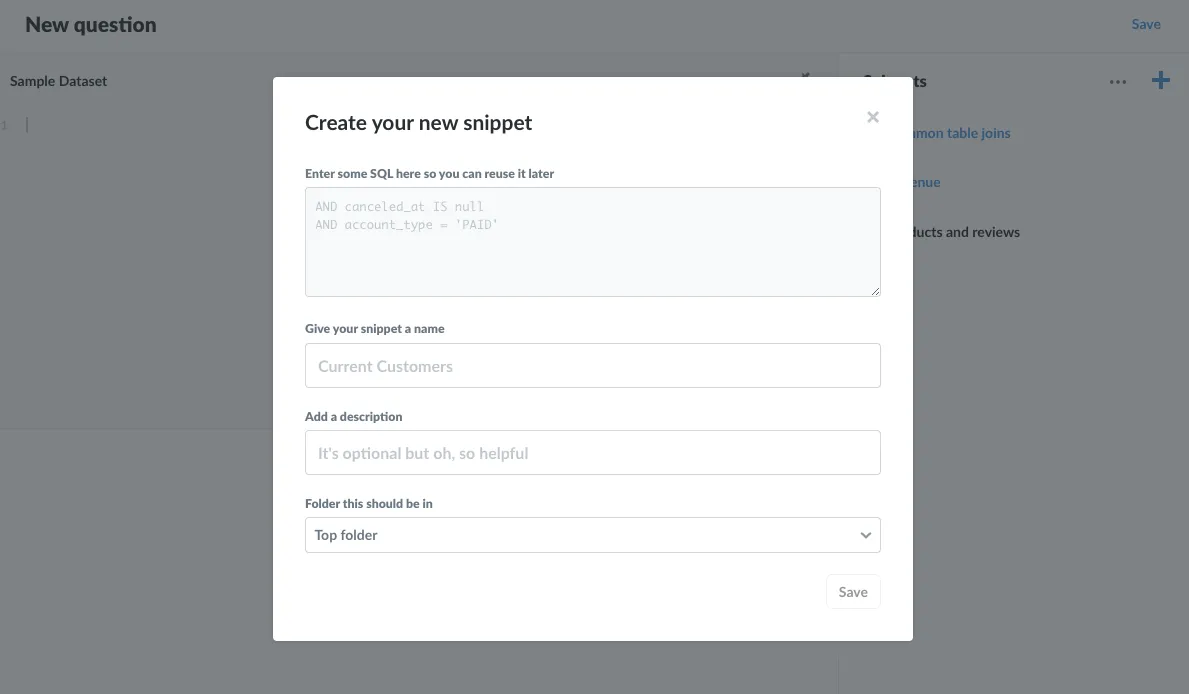
The default location is the Top folder, which is the root folder for all snippets and folders. You can add a snippet to a folder at any time (or relocate a snippet to another folder, provided you have Edit permission to both folders).
Note that snippet names must be unique; folders do not affect this requirement.
Administrators (and only administrators) can set snippet visibility and editability by placing snippets in folders, then granting groups one of three permission levels with respect to those folders. If you’re familiar with collection permissions, the functionality is similar. For more on how collection and folder permissions work together, see how folder permissions work below.
Administrators can set the permissions on a folder by clicking on the ellipsis (…) next to a folder, and selecting Change permissions.
You can additionally change the currently selected folder by mousing over to the top of the Snippets sidebar, clicking on the ellipsis (…) to the left of the +, and selecting Change permissions. When at the Top folder, selecting the … at the top of the sidebar will give Administrators the option to set permissions for all snippets, folders, and sub-folders.
When changing permissions on a folder that has sub-folders, you have an option to extend those permissions to that folder’s sub-folders by toggling the Also change sub-folders setting.
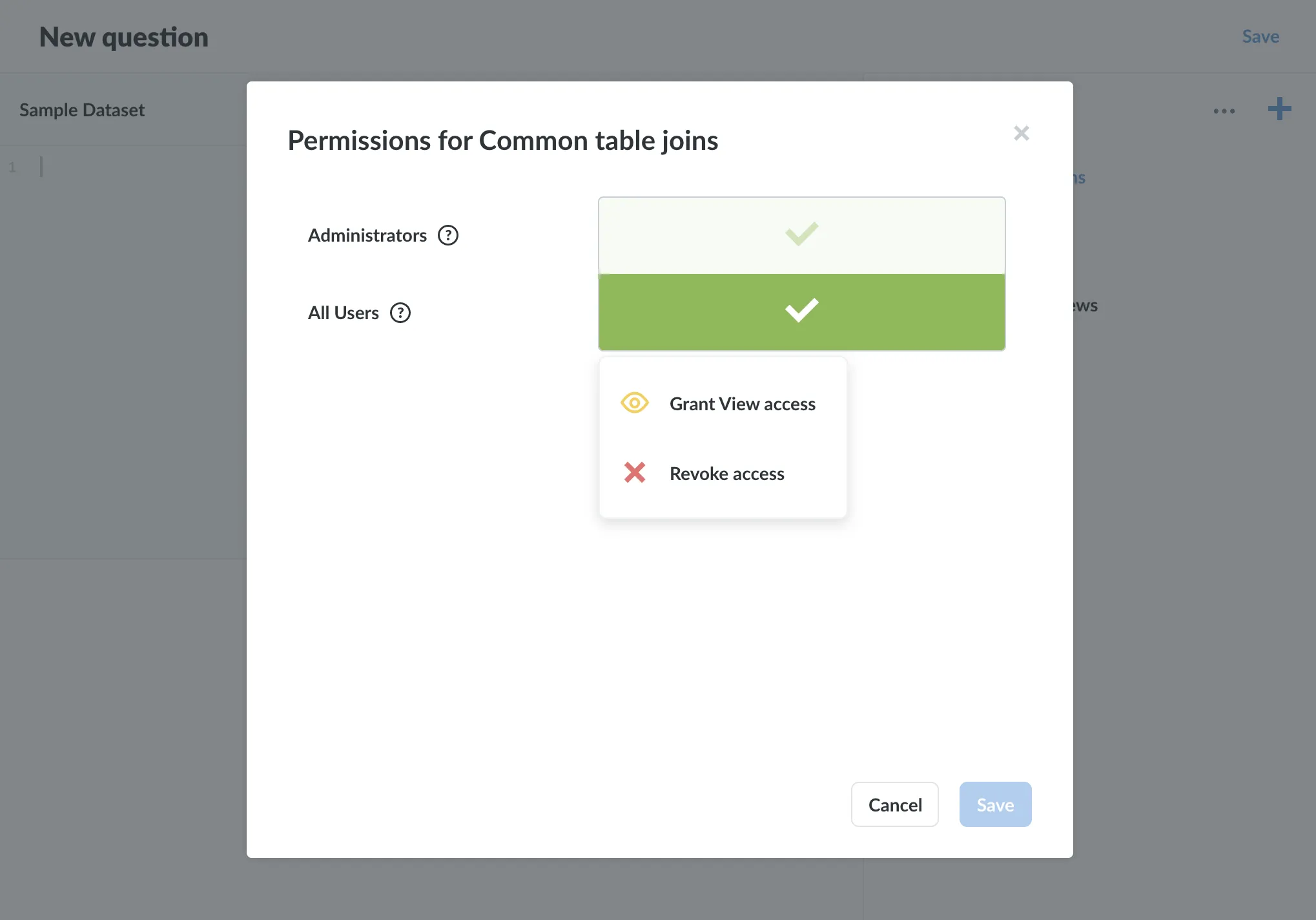
There are three options for changing snippet folder permissions:
Archiving or unarchiving snippets does not affect a snippet’s permissions. If, for example, only one group, say the Accounting group, has edit permissions on a folder, only people in the Accounting group (and admins) would be able to archive and unarchive snippets in that folder, as archiving and unarchiving is considered editing the snippet.
As with collection permissions, folder permissions are additive, meaning that the more permissive access overrules less permissive access. See Setting permissions for a more detailed discussion.
But snippet folder permissions require some more effort to unpack, as permissions for snippet folders must work in conjunction with permissions for data and collections.
Here’s the basic rule: data is more sensitive than code, so permissions that apply to data will take precedence over permissions that apply to code. Let’s work through an example to illustrate how this works in practice.
Consider the following scenario (and here’s a sentence that merits slow reading): a group could have permission to a Collection that contains a question that uses a snippet housed in a folder that the group does not have permissions to. To rephrase: people in that group have permissions to run questions in a collection, but they do not have permission to a folder containing a snippet used in one of the collection’s questions. How will Metabase resolve permissions in this case?
In three parts:
{{snippet: Example snippet I don't have permissions to but can still use }}.Because of how snippet folder permissions work, we recommend that you consider snippet folder permissions as an additional tool for snippet organization, not as method of preventing access to the SQL code those snippets contain. Use folder permissions to keep the snippet sidebar tidy by exposing teams to folders relevant to their analytical domain, and restrict editing permissions to key snippets in your organization to keep important SQL code accurate and safe from bugs introduced by unvetted edits.


