





Version v0.37 of Metabase is no longer supported. Check out the docs for the current stable version, Metabase v0.63.
Working with MongoDB in Metabase
This article covers:
- Connecting to MongoDB.
- Configuring SSL via the command line.
- Connecting to a MongoDB Atlas cluster.
- General connectivity concerns.
Connecting to MongoDB
Go to Admin -> Databases, and click the Add database button. Select MongoDB from the dropdown.
There are two ways to connect to MongoDB:
- Using the Metabase fields to input your connection details.
- Pasting your connection string.
Using Metabase fields
The default way to connect to MongoDB is to fill out your connection details in the fields Metabase provides:
- Host
- Database name
- Port
- Username
- Password
- Authentication Database (optional database to use when authenticating)
- Additional Mongo connection string options
Additional settings:
-
Use DNS SRV when connecting Using this option requires that provided host is a FQDN. If connecting to an Atlas cluster, you might need to enable this option. If you don’t know what this means, leave this disabled.
-
Use a secure connection (SSL)? Enable SSL and paste the contents of the server’s SSL certificate chain in the input text box. This option is available for this method of connection only (i.e. you cannot include a certificate when connecting with a connection string).
Using a connection string
If you’d prefer to connect to MongoDB using a connection string, click on Paste a connection string. The Metabase user interface will update with a field to paste your connection string.
Metabase currently does NOT support the following connection string parameters:
tlsCertificateKeyFiletlsCertificateKeyFilePasswordtlsCAFile
If you need to use a certificate, connect via the default method and enable Use a secure connection(SSL).
Settings common to both connection options
- Use an SSH tunnel for database connections. Some database installations can only be accessed by connecting through an SSH bastion host. This option also provides an extra layer of security when a VPN is not available. Enabling this is usually slower than a direct connection.
- Automatically run queries when doing simple filtering and summarizing. When this is on, Metabase will automatically run queries when users do simple explorations with the Summarize and Filter buttons when viewing a table or chart. You can turn this off if querying this database is slow. This setting doesn’t affect drill-throughs or SQL queries.
- This is a large database, so let me choose when Metabase syncs and scans. By default, Metabase does a lightweight hourly sync and an intensive daily scan of field values. If you have a large database, we recommend turning this on and reviewing when and how often the field value scans happen.
Configuring SSL via the command line
You can enter a self-signed certificate via the Metabase UI (though not when using a connection string), or you can use the command line to add a self-signed certificate.
cp /usr/lib/jvm/default-jvm/jre/lib/security/cacerts ./cacerts.jks
keytool -import -alias cacert -storepass changeit -keystore cacerts.jks -file my-cert.pem
Then, start Metabase using the store:
java -Djavax.net.ssl.trustStore=cacerts.jks -Djavax.net.ssl.trustStorePassword=changeit -jar metabase.jar
Learn more about configuring SSL with MongoDB.
Connecting to a MongoDB Atlas cluster
To make sure you are using the correct connection configuration:
-
Log into your Atlas cluster
-
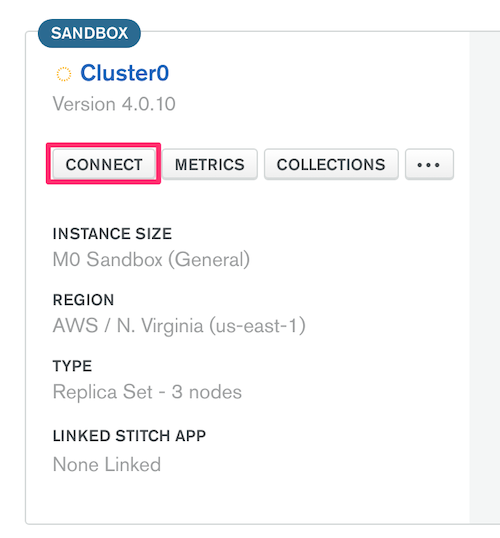
Select the cluster you want to connect to, and click Connect.
-
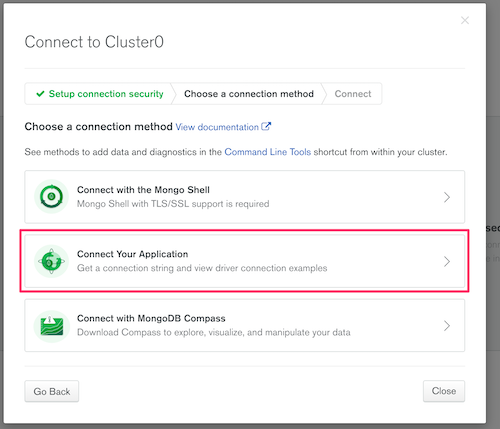
Click Connect Your Application.
-
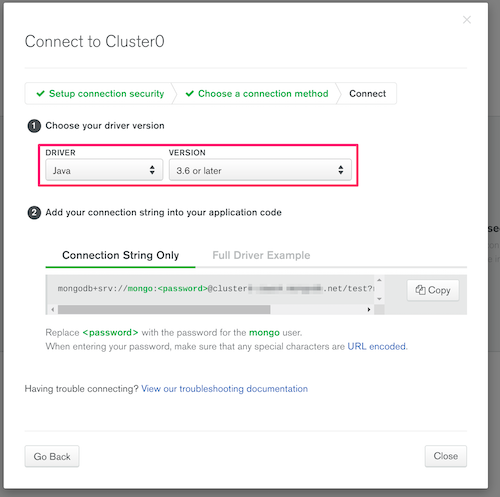
Select Java and 3.6 or later.
-
The resulting connection string has the relevant information to provide to Metabase’s
Add a Databaseform for MongoDB. -
You will likely want to select the option
Use DNS SRV, which newer Atlas clusters use by default.
General connectivity concerns
- Connect using
DNS SRV, which is the recommended method for newer Atlas clusters. - Have you checked your cluster host whitelist? When testing a connection but seeing failure, have you tried setting the IP whitelist to
0.0.0.0/0? Whitelisting this address allows connections from any IP addresses. If you know the IP address(es) or CIDR block of clients, use that instead.
Read docs for other versions of Metabase.