





Version v0.40 of Metabase is no longer supported. Check out the docs for the current stable version, Metabase v0.63.
Managing accounts
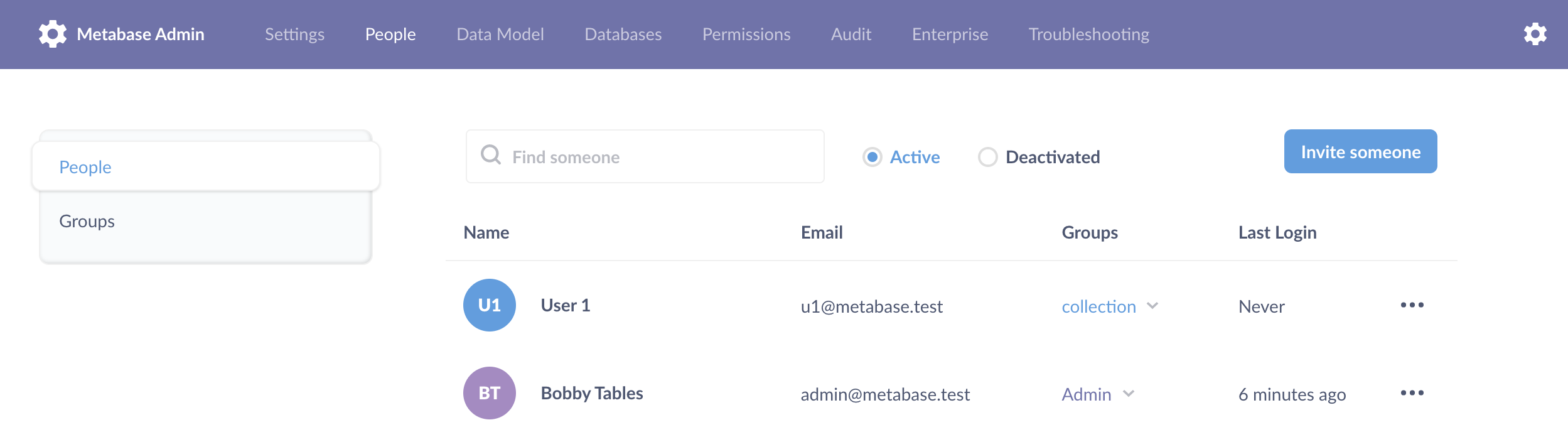
To start managing people, first go to the Admin panel by clicking on the gear icon in the top right of Metabase and selecting Admin.
In the Admin panel, select the People tab from the menu bar at the top of the screen. You’ll see a list of all the people in your organization.
Creating accounts for your team
To add a new team member, click Add person in the upper right corner. You’ll be prompted to enter their name and email address.
If you’ve already configured Metabase to use email, Metabase will send the new user an invite email. Otherwise, it’ll give you a temporary password that you’ll have to send to the person you’re inviting by hand.
Deactivating an account
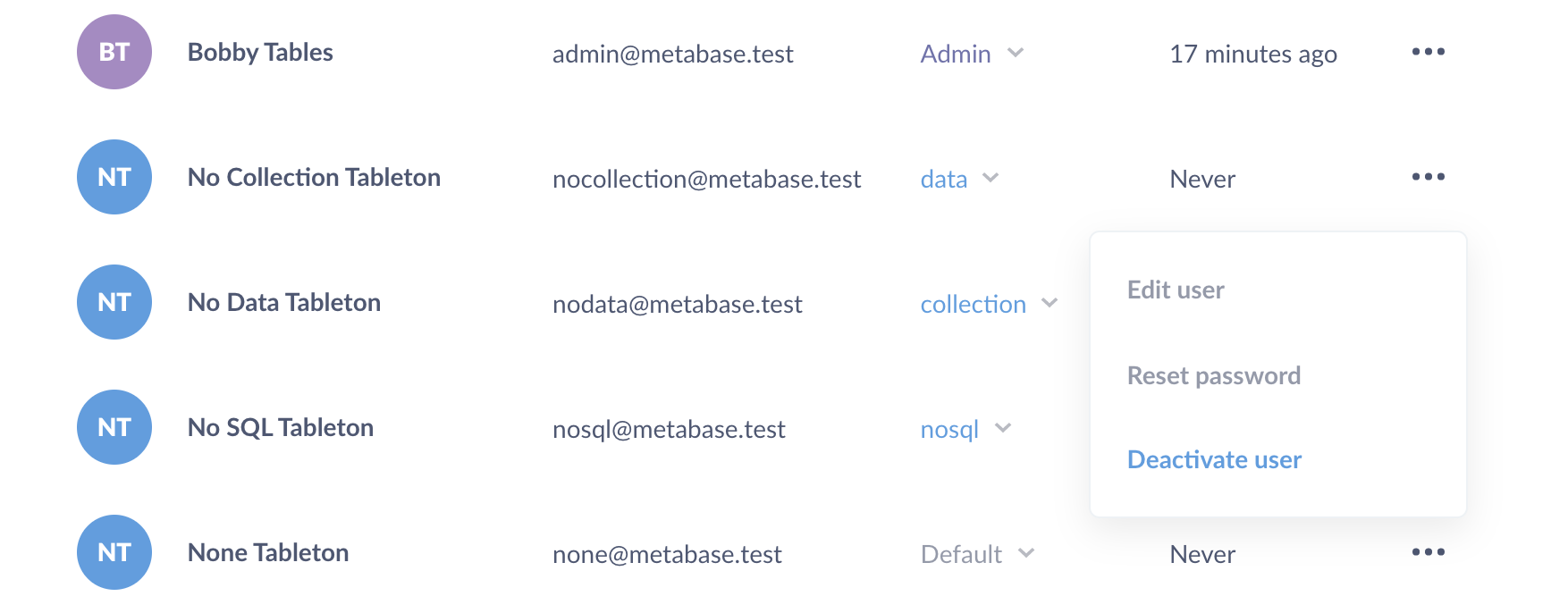
To deactivate someone’s account, click on the three dots icon on the right of a person’s row and select Deactivate from the dropdown. Deactivating an account will mark it as inactive and prevent the user from logging in - but it won’t delete that person’s saved questions or dashboards.
To reactivate a deactivated account, click the Deactivated radio button at the top of the people list to see the list of deactivated accounts. Click on the icon on the far right to reactivate that account, allowing them to log in to Metabase again.
Editing an account
You can edit someone’s name and email address by clicking the three dots icon and choosing Edit Details. Note: be careful when changing someones’s email address, because this will change the address they’ll use to log in to Metabase.
Resetting someone’s password
If you’ve already configured your email settings, people can reset their passwords using the “forgot password” link on the login screen. If you haven’t yet configured your email settings, they will see a message telling them to ask an admin to reset their password for them.
To reset a password for someone, just click the three dots icon next to their account and choose Reset Password. If you haven’t configured your email settings yet, you’ll be given a temporary password that you’ll have to share with that person. Otherwise, they’ll receive a password reset email.
Changing a person’s role
Right now, the only special role someone can have is Admin. The only difference is that Admins can access the Admin Panel and make changes there, and can set permissions on collections.
To make someone an admin, click on the Groups dropdown and click the check mark next to the Administrators group.
Adding people to Groups
Adding people to groups allows you to assign data access and collection permissions to them. To add someone to one or more groups, just click the Groups dropdown and click the checkboxes next to the group(s) you want to add the person to.
Next: Single Sign-On
Learn how to configure Single Sign-On to let users sign in or sign up with just a click.
Read docs for other versions of Metabase.