





Version v0.44 of Metabase is no longer supported. Check out the docs for the current stable version, Metabase v0.63.
Full-app embedding
Full-app embedding is only available on Pro and Enterprise plans (both self-hosted and on Metabase Cloud).
Metabase offers several types of embedding with different levels of customization and security.
Full-app embedding is the only type of embedding that integrates with your permissions and SSO to give people the right level of access to query and drill-down into your data.
If you only want to set up a fixed number of filters and drill-down views into your data (i.e., prevent people from creating their own questions), you might prefer Signed embedding.
Prerequisites
- Make sure you have a license token for a paid plan.
- Organize people into Metabase groups.
- Set up permissions for each group.
- Set up SSO to automatically apply permissions and show people the right data upon sign-in.
If you’re dealing with a multi-tenant situation, check out our recommendations for Configuring permissions for different customer schemas.
Enabling full-app embedding in Metabase
- Go to Settings > Admin settings > Embedding.
- Click Enable.
- Click Full-app embedding.
- Under Authorized origins, add the URL of the website or web app where you want to embed Metabase (e.g.,
https://*.example.com).
Setting up embedding on your website
- Create an iframe with a
srcattribute set to:- the URL of the Metabase page you want to embed, or
- an authentication endpoint that redirects to your Metabase URL.
- Optional: Depending on the way your web app is set up, set environment variables to:
- Optional: Enable communication to and from the embedded Metabase using
postMessage: - Optional: Set parameters to show or hide Metabase UI components.
Once you’re ready to roll out your full-app embed, make sure that people allow browser cookies from Metabase, otherwise they won’t be able to log in.
Pointing an iframe to a Metabase URL
Go to your Metabase instance and find the page that you want to embed.
For example, to embed your Metabase home page, set the src attribute to your site URL.
http://metabase.yourcompany.com/
To embed a specific Metabase dashboard, use the dashboard’s URL:
http://metabase.yourcompany.com/dashboard/1
Pointing an iframe to an authentication endpoint
Use this option if you want to send people directly to your SSO login screen (i.e., skip over the Metabase login screen with an SSO button), and redirect to Metabase automatically upon authentication.
You’ll need to set the src attribute to your auth endpoint, with a parameter containing the encoded Metabase URL. For example, to send people to your SSO login page and automatically redirect them to http://metabase.yourcompany.com/dashboard/1:
https://metabase.example.com/auth/sso?redirect=http%3A%2F%2Fmetabase.yourcompany.com%2Fdashboard%2F1
If you’re using JWT, you can use the relative path for the redirect (i.e., your Metabase URL without the site URL). For example, to send people to a Metabase page at /dashboard/1:
https://metabase.example.com/auth/sso?jwt=<token>&redirect=%2Fdashboard%2F1
You must URL encode (or double encode, depending on your web setup) all of the parameters in your redirect link, including parameters for filters (e.g., filter=value) and UI settings (e.g., top_nav=true). For example, if you added two filter parameters to the JWT example shown above, your src link would become:
https://metabase.example.com/auth/sso?jwt=<token>&redirect=%2Fdashboard%2F1%3Ffilter1%3Dvalue%26filter2%3Dvalue
Embedding Metabase in a different domain
If you want to embed Metabase in another domain (e.g., Metabase is hosted at metabase.yourcompany.com, but you want to embed Metabase at yourcompany.github.io), set the following environment variable:
MB_SESSION_COOKIE_SAMESITE=None
If you set this environment variable to None, you must use HTTPS in Metabase to prevent browsers from rejecting the request. For more information, see MDN’s documentation on SameSite cookies.
Securing full-app embeds
Metabase uses HTTP cookies to authenticate people and keep them signed into your embedded Metabase, even when someone closes their browser session.
To limit the amount of time that a person stays logged in, set MAX_SESSION_AGE to a number in minutes. The default value is 20,160 (two weeks).
For example, to keep people signed in for 24 hours at most:
MAX_SESSION_AGE=1440
To automatically clear a person’s login cookies when they end a browser session:
MB_SESSION_COOKIES=true
To manually log someone out of Metabase, load the following URL (for example, in a hidden iframe on the logout page of your application):
https://metabase.yourcompany.com/auth/logout
If you’re using JWT for SSO, we recommend setting the exp (expiration time) property to a short duration (e.g., 1 minute).
Filling an entire iframe with an embedded Metabase page
To make an embedded Metabase page fill up the entire iframe (e.g., a question page), use postMessage to send a “frame” message from Metabase to your app:
{ “metabase”: { “type”: “frame”, “frame”: { “mode”: “normal” }}}
Fitting an iframe to a Metabase page with a fixed size
To specify the size of an iframe so that it matches an embedded Metabase page (e.g., a dashboard page), use postMessage to send a “frame” message from Metabase to your app:
{ “metabase”: { “type”: “frame”, “frame”: { “mode”: “fit”, height: HEIGHT_IN_PIXELS }}}
Passing an embedding URL between Metabase and your app
To make a request for a particular embedding URL (e.g., for deep linking), you can use postMessage to send a “location” message from your embedded Metabase to your app:
{ “metabase”: { “type”: “location”, “location”: LOCATION_OBJECT }}
Or, send a “location” message to your embedded Metabase from your app:
{ “metabase”: { “type”: “location”, “location”: LOCATION_OBJECT_OR_URL }}
Showing or hiding Metabase UI components
To change the interface of your full-app embed, you can add parameters to the end of your embedding URL. If you want to change the colors or fonts in your embed, see Customizing appearance.
For example, you can disable Metabase’s top nav bar and side nav menu like this:
your_embedding_url?top_nav=false&side_nav=false
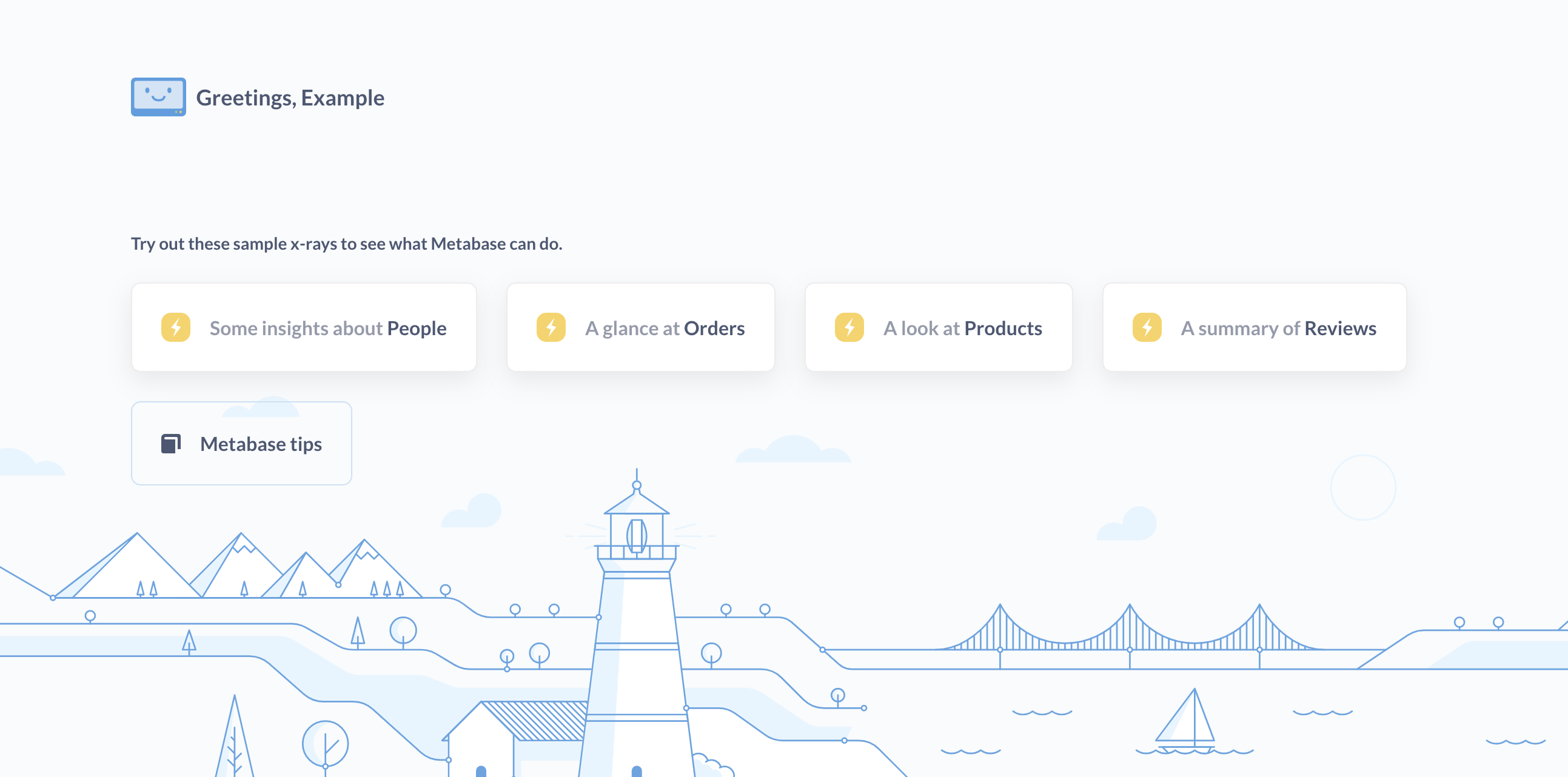
top_nav
Hidden by default. To show the top navigation bar:
top_nav=true

search
Hidden by default. To show the search box in the top nav:
top_nav=true&search=true
new_button
Hidden by default. To show the + New button used to create queries or dashboards:
top_nav=true&new_button=true
side_nav
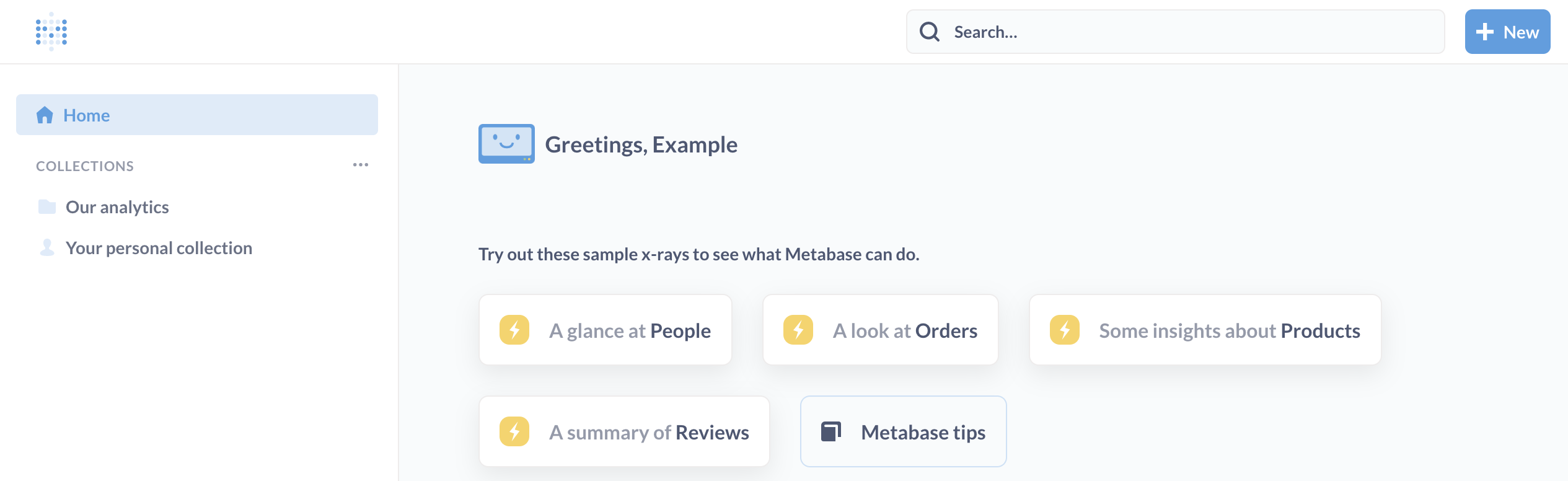
The navigation sidebar is shown on /collection and home page routes, and hidden everywhere else by default.
To allow people to minimize the sidebar:
top_nav=true&side_nav=true
header
Visible by default on question and dashboard pages.
To hide a question or dashboard’s title, additional info, and action buttons:
header=false
additional_info
Visible by default on question and dashboard pages, when the header is enabled.
To hide the gray text “Edited X days ago by FirstName LastName”, as well as the breadcrumbs with collection, database, and table names:
header=false&additional_info=false

action_buttons
Visible by default on question pages when the header is enabled.
To hide the action buttons such as Save, Summarize, Filter, or the query builder icon:
header=false&action_buttons=false

Reference app
To build a sample full-app embed, see our reference app on GitHub.
Further reading
- Strategies for delivering customer-facing analytics.
- Permissions strategies.
- Customizing Metabase’s appearance.
Read docs for other versions of Metabase.