Version v0.34 of Metabase is no longer supported. Check out the docs for the current stable version, Metabase v0.63.
This guide covers:
Version 0.32.9 introduced an option to connect using DNS SRV, which is the recommended method for newer Atlas clusters.
Have you checked your cluster host whitelist? When testing a connection but seeing failure, have you tried setting the IP whitelist to 0.0.0.0/0? This allows connections from any IP addresses. If you know the IP address(es) or CIDR block of clients, use that instead.
Are you using self-signed certificates? While Metabase doesn’t support providing a self-signed cert through the Metabase UI, you can still use the command line to configure this. Just copy the existing store and add the self-signed cert to it like this:
cp /usr/lib/jvm/default-jvm/jre/lib/security/cacerts ./cacerts.jks
keytool -import -alias cacert -storepass changeit -keystore cacerts.jks -file my-cert.pem
Then, start Metabase using the store:
java -Djavax.net.ssl.trustStore=cacerts.jks -Djavax.net.ssl.trustStorePassword=changeit -jar metabase.jar
Additional reference for configuring SSL with MongoDB for self-signed certs:
To make sure you are using the correct connection configuration:
Log into your Atlas cluster
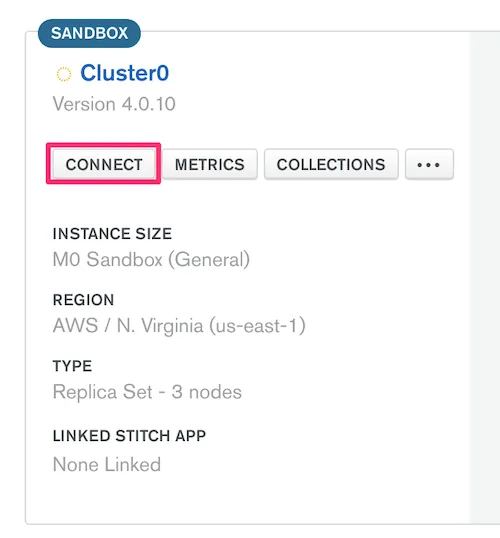
Select the cluster you want to connect to, and click “Connect”
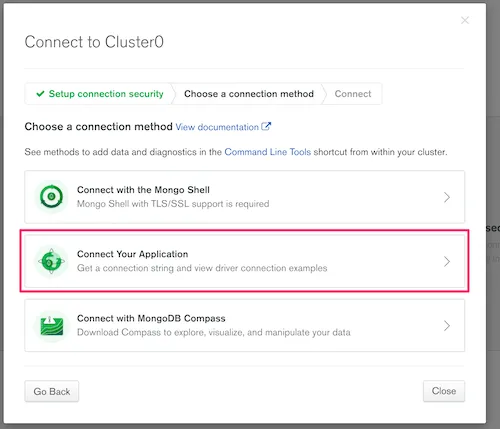
Click “Connect Your Application”
Select “Java” and “3.6 or later”
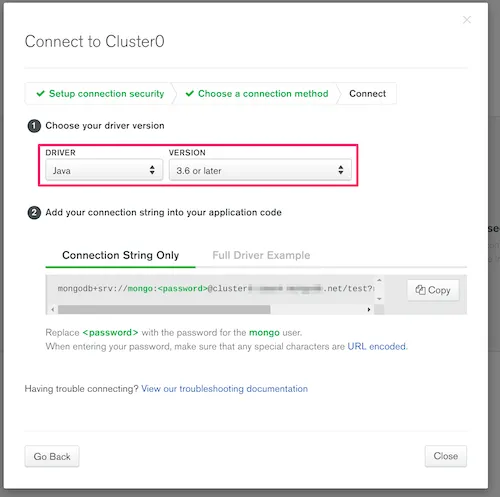
The resulting connection string has the relevant information to provide to Metabase’s Add a Database form for MongoDB.
You will likely want to select the option Use DNS SRV, which newer Atlas clusters use by default.


