Version v0.39 of Metabase is no longer supported. Check out the docs for the current stable version, Metabase v0.63.
In the main navigation bar, click on the gears icon in the top right, and select Admin.
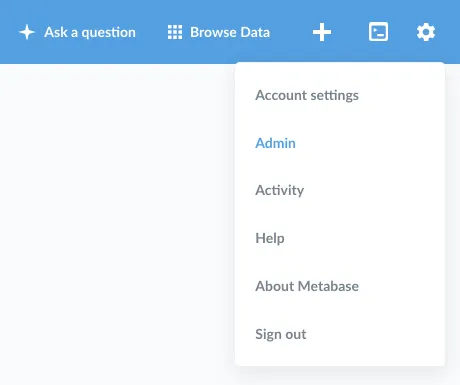
Once in the Admin section, select the Databases tab from the navigation bar at the top of the screen. You’ll see a list of your connected databases (if any). To connect a database to Metabase, click Add database and follow the connection instructions for your database.
Although connection details differ database to database, in general you’ll need to get connection info from your database admin, usually some combination of hostname (sometimes called endpoint), port, database username and password, and the name of the database.
Don’t see the database you need here? Take a look at our Community Drivers page to see if someone’s built one, or learn how to get started building your own. Note that our hosted offering, Metabase Cloud, doesn’t support community drivers, meaning that (for now) you can only use Metabase Cloud with the officially supported databases listed above.
For provider-specific connection details, like connecting to a PostgreSQL data warehouse on RDS:
Check our troubleshooting guide.
Connection options differ depending on which database you’re connecting to. Here’s an overview:
Metabase automatically tries to connect to databases with SSL first, then without if that doesn’t work. If it’s possible to connect to your database with an SSL connection, Metabase will make that the default setting for your database. If you prefer to connect without this layer of security, you can always change this setting later, but we highly recommend keeping SSL turned on to keep your data secure.
See our guide to SSH tunneling.
By default, Metabase does a lightweight hourly sync and an intensive daily scan of field values. If you have a large database, we recommend turning on the option “This is a large database, let me choose when Metabase syncs and scans”. Once on, you can review when and how often the field value scans happen. (Note: this setting used to be called “Enable in-depth analysis.”)
If you enable this and save your changes, you’ll see a new tab at the top of the form called “Scheduling.” Click on that, and you’ll see options to change when and how often Metabase syncs and scans.
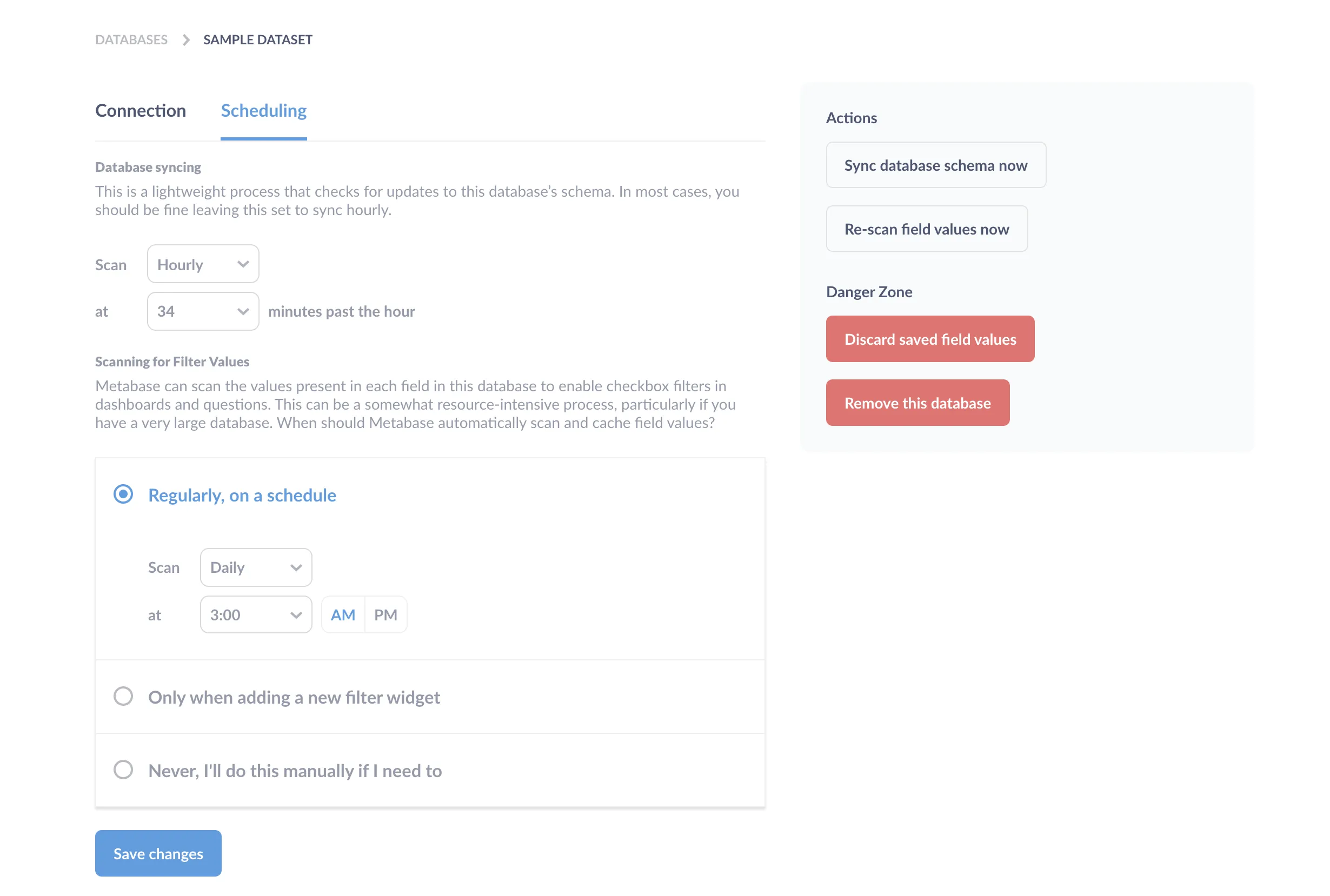
Metabase maintains its own information about the various tables and fields in each database to aid in querying. By default, Metabase performs this lightweight sync hourly to look for changes to the database such as new tables or fields. Metabase does not copy any data from your database. It only maintains lists of the tables and columns.
Syncing can be set to hourly, or daily at a specific time. Syncing can’t be turned off completely, otherwise Metabase wouldn’t work.
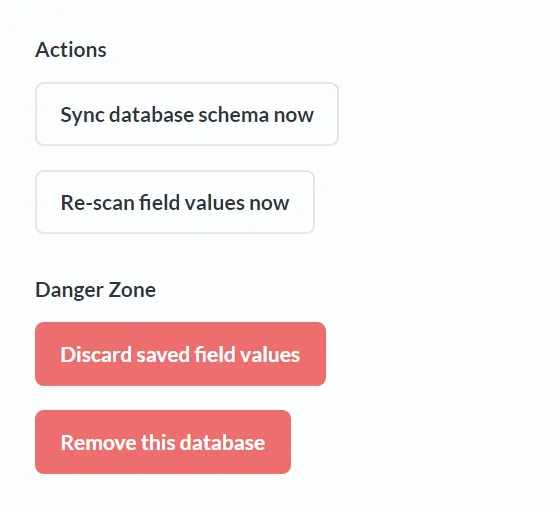
If you’d like to sync your database manually at any time, click on it from the Databases list in the admin panel and click on the Sync database schema now button on the right side of the screen:
When Metabase first connects to your database, it takes a look at the metadata of the columns in your tables and automatically assigns them a type. Metabase also takes a sample of each table to look for URLs, JSON, encoded strings, etc. You can manually edit table and column metadata in Metabase at any time from the Data Model tab in the Admin Panel.
By default, Metabase also performs a more intensive daily sampling of each field’s values and caches the distinct values in order to make checkbox and select filters work in dashboards and SQL/native questions. This process can slow down large databases, so if you have a particularly large database, you can turn on the option to choose when Metabase scans, and select one of three scan options in the Scheduling tab:
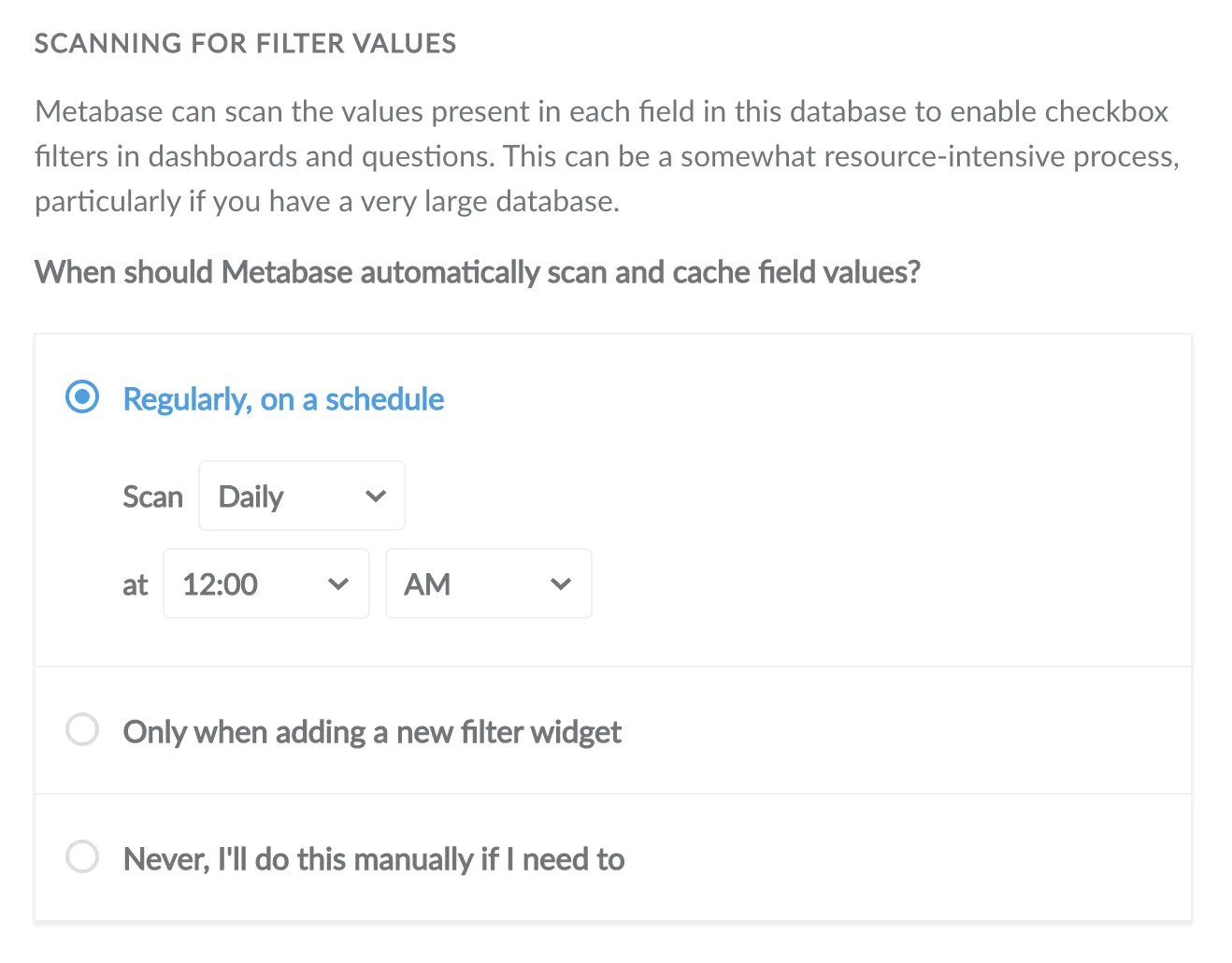
Customer ID and another one called ID, only those two fields would be scanned at the moment the filter is saved.If for some reason you need to flush out the cached field values for your database, click the button that says Discard saved field values in the top-right of the database’s page.
By default, Metabase will auto-run queries when you use the Summarize and Filter buttons when viewing a table or chart. If your users are exploring data that is stored in a slow database, you may want to turn the auto-run off to avoid re-running the query every time your users change an option in the Summarize view. Turning this off presents the users with the option to re-run the query when they choose to.
When syncing with this database, Metabase will scan a subset of values of fields to gather statistics that enable things like improved binning behavior in charts, and to generally make your Metabase instance smarter.
Some databases allow you to append options to the connection string Metabase will use to connect to your database.
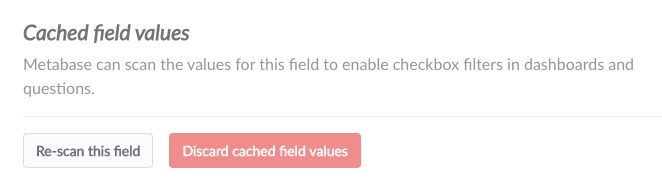
To re-scan a specific table, go to the Data Model section of the Admin Panel, select the table from the list, and click the gear icon in the top right of the page. Similarly, to do this for just a specific field, on the same Data Model page, find the field you want and click the gear icon on the far right of the field’s name and options.
On either the table settings or field settings page, you’ll see these options:
For more on editing metadata, check out the Data Model page: editing metadata.
Caution: Deleting a database is irreversible! All saved questions and dashboard cards based on the database will be deleted as well!
To delete a database from Metabase, click on Remove this database from the database detail screen.
You can also delete a database from the database list: hover over the row with the database you want to remove and click the Delete button that appears.

Metabase can send emails for certain features, like email invites, but first you need to set up an email account.


