




Version v0.41 of Metabase is no longer supported. Check out the docs for the current stable version, Metabase v0.63.
Permissions overview
There are always going to be sensitive bits of information in your databases and tables, and thankfully Metabase provides a simple way to ensure that people on your team only see the data they’re supposed to.
How permissions work in Metabase
Metabase uses a group-based approach to set permissions. At a high-level, you can set permissions on two things: data and collections. Data permissions are about defining what raw data groups are allowed to use when creating new questions (i.e., self-service analytics). Collection permissions determine what existing dashboards and questions groups can see. On some plans, you can also sandbox data, which “filters” what data people can see when they view a particular questions, such as limiting the rows or columns they can see.
You can set permissions on:
- Databases connected to Metabase
- Tables and schemas in those databases
- Rows and columns of a table (only on some plans)
- Collections of questions and dashboards
For plans that include SQL Snippet Folders, you can also set permissions on those folders.
To determine who has access to what, you’ll need to create one or more groups, choose which level of access that group has to different databases, collections, and so on, then add people to that group.
Key points regarding permissions
Some key things to keep in mind when thinking about permissions in Metabase:
- Permissions are granted to groups, not people.
- People can be in more than one group.
- If a person is in multiple groups, they will have the most permissive access granted to them across all of their groups. For example, if they are part of three groups, and two of those groups don’t have permissions to a database, but the third group they’re in can query that database, then that person will have access to that database.
Groups
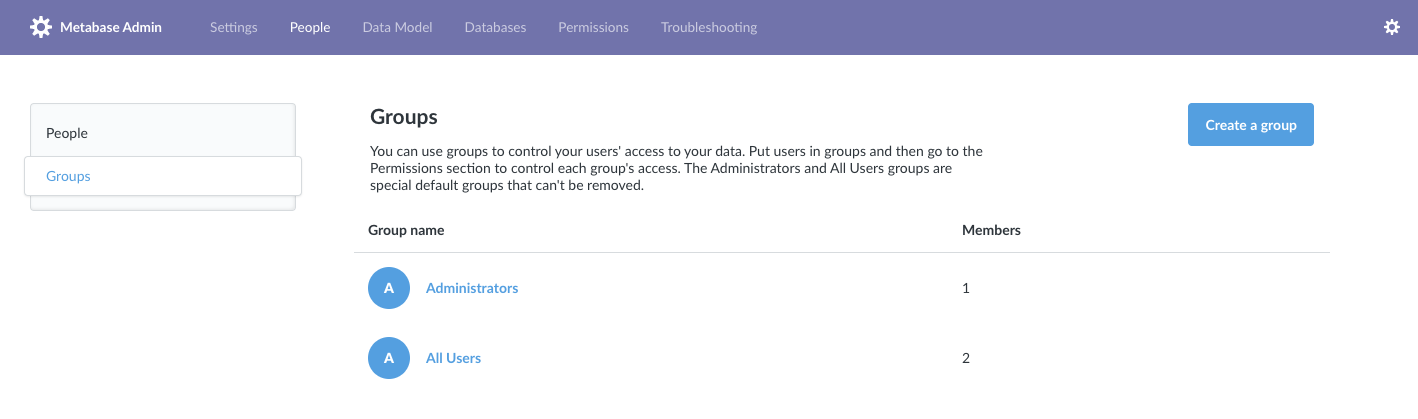
To view and manage your groups, go to the Admin Panel > People, and then click on Groups from the side menu.
Special default groups
Every Metabase has two default groups: Administrators and All Users. These are special groups that can’t be removed.
Administrators
You’re a member of the Administrators group — that’s why you were able to go to the Admin Panel in the first place. To make someone an admin of Metabase, you just need to add them to this group. Metabase admins can log into the Admin Panel and make changes there, and they always have unrestricted access to all data that you have in your Metabase instance. So be careful who you add to the Administrator group!
All users
The All Users group is another special one. Every Metabase user is always a member of this group, though they can also be a member of as many other groups as you want. We recommend using the All Users group as a way to set default access levels for new Metabase users. If you have Google single sign-on enabled, new users who join that way will be automatically added to the All Users group.
As we mentioned above, a person is given the most permissive setting she has for a given database/schema/table across all groups she’s in. Because of that, it’s important that your All Users group should never have greater access for an item than a group for which you’re trying to restrict access — otherwise the more permissive setting will win out. This goes for both data access as well as collection permission settings.
Managing groups
Creating a group and adding people to it
From the Admin > Groups tab, click the Add a group button to create a new group. We recommend creating groups that correspond to the teams your company or organization has, such as Human Resources, Engineering, Finance, and so on. By default, newly created groups don’t have access to anything.
Click into a group and then click Add members to add users to that group. Click on the X on the right side of a group member to remove them from that group. You can also add and remove users from groups from the People list using the dropdown in the Groups column.
Removing a group
To remove a group, click the X icon to the right of a group in the list to remove it (remember, you can’t remove the special default groups).
Further reading
Checkout our track on Permissions in Learn Metabase.
Next: Data permissions
Metabase lets you set permissions on databases and their tables.
Read docs for other versions of Metabase.